Create your first creator list in Leewou
Create a creator list, save profiles from Discovery, and organize creators with statuses, labels, notes, assignees, and exports.
A creator list in Leewou is where research turns into an actual workflow. Instead of saving names in a spreadsheet and hoping someone follows up later, you keep creators in one place, move them through statuses, and leave the context your team will need next.
You can create your first creator list in Leewou from either side of the product. Start in Discover when you are actively searching, or start in Manage if you already know the list you want to build.
Start a creator list from Discover or Manage
Both entry points lead to the same place. The difference is just whether you are already looking at creators when the list idea shows up.
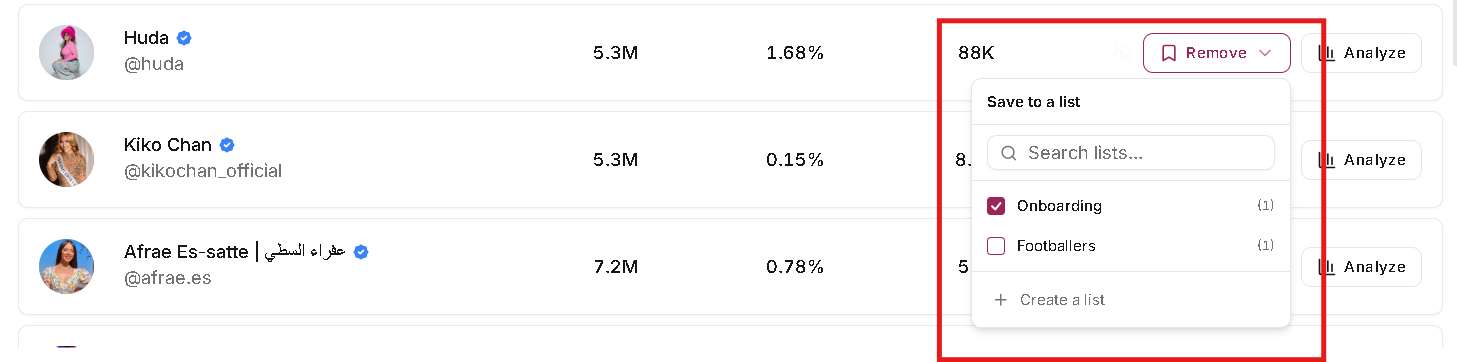
- From Discover, click Save on a creator and choose an existing list or create a new one inside the popover.
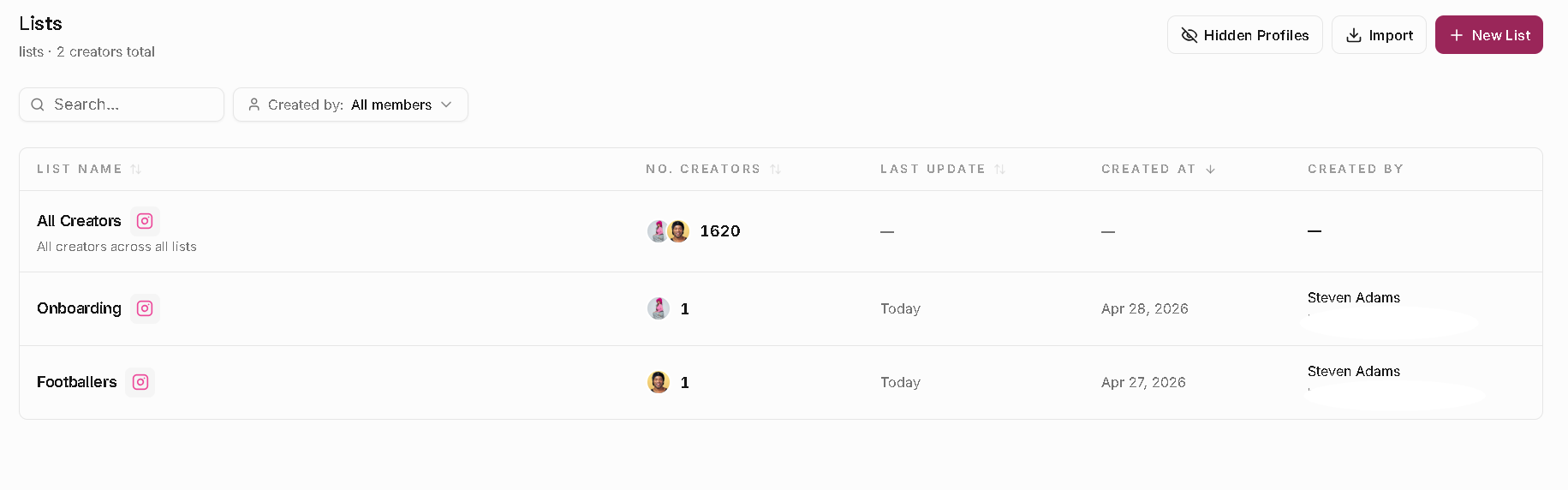
- From Manage, open the left sidebar item, land on /manage/lists, and click New List in the top-right corner.
Name the list after the campaign, market, or creator theme you actually care about. Short, obvious names are easier to reuse than vague ones like test list or outreach batch.
Save creators while you are still searching
This is the fastest route for most teams because you do not need to leave discovery to start building structure.
- Run your search in Discover and review the results before you start saving everything in sight.
- Click Save on a creator card, search your existing lists, or choose Create a list in the popover.
- Save the strongest fits first so the list starts clean instead of becoming a parking lot for maybes.
- If you are on a paid plan, use Bulk Save when you want to move a larger chunk of results into a list faster.
Bulk Save is available on paid plans. The modal in Discover is built for larger saves and supports up to 1,000 results at once, but trial users should expect to save creators individually.
Create and manage lists from the Manage area
Manage is the control center for list work. Once you are done discovering profiles, this is where the list becomes usable for collaboration and follow-up.
- Open Manage in the sidebar. The app redirects you straight to the Lists dashboard.
- Click New List to create an empty list, or click Import if you already have a creator spreadsheet.
- Open any list and use Add Creators if you want to search for more profiles from inside the list view later.
Keep the creator list in Leewou organized
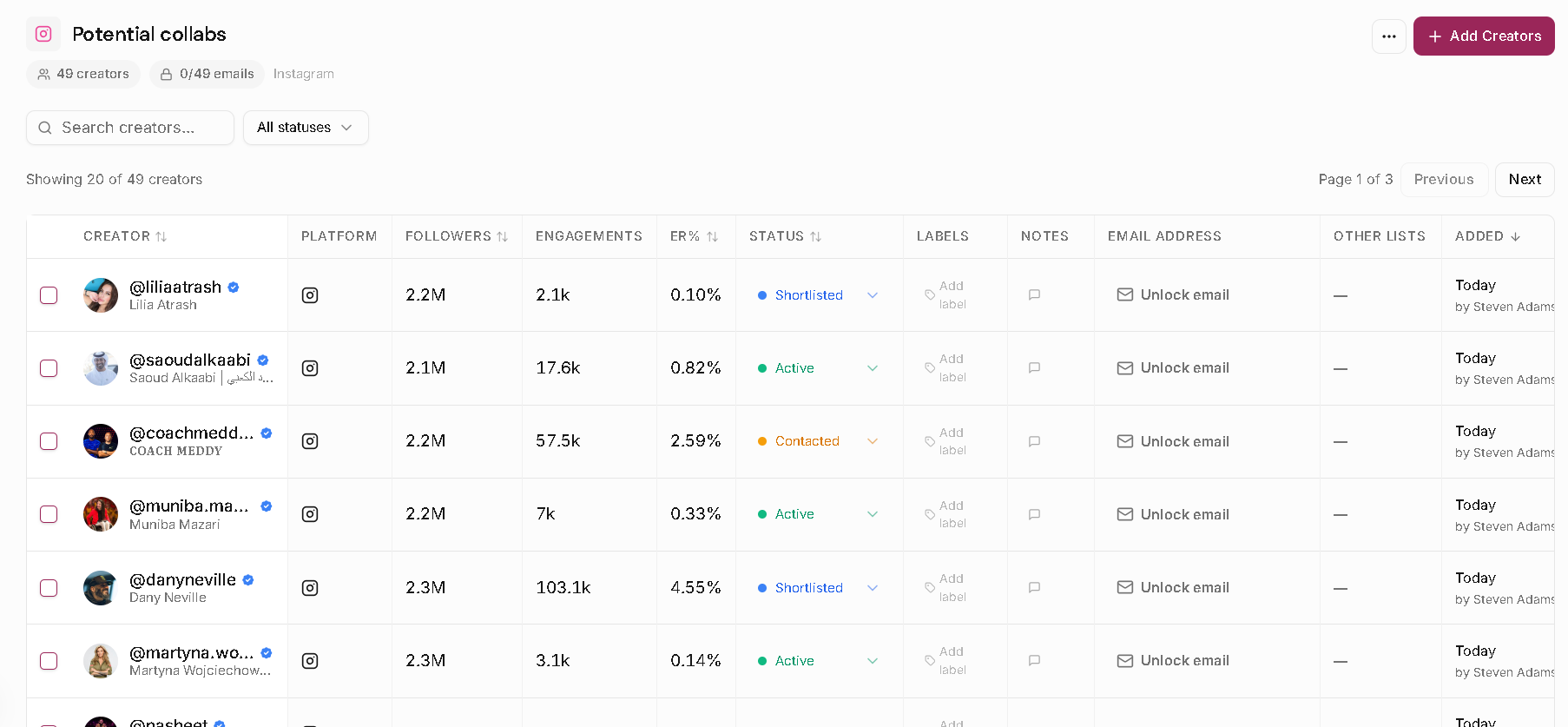
A list only stays useful if people can read it quickly and know what happens next. Leewou gives you structure directly inside the list table, so you do not need a second system to track progress.
- Status options include Not Started, Shortlisted, Contacted, Active, Ended, and Blocked.
- Labels help you group creators by campaign, persona, region, or any other internal system you already use.
- Notes let your team capture context that should stay attached to the creator instead of living in chat.
- Assignee keeps ownership clear when more than one person is working the same list.
- The table also supports search, status filters, and label filters so long lists stay workable.
Lists also include an email address column and unlock actions. If email unlocking looks disabled, check your team's privacy settings first because that workflow can be turned off at the team level.
Know the limits before you export or batch work
A few limits are worth knowing upfront because they affect how you break work into batches.
- Bulk Save supports up to 1,000 results in one run and is limited to paid plans.
- Manual Add Creators requests are capped at 50 creators per request.
- List exports are capped at 50 creators per export, so narrow the selection before you download.
FAQ
Frequently asked questions about creator lists
These are the questions that usually come up once a team starts saving real creators instead of just testing buttons.